
Very
Very tasks fill a basket and hand it to you as a cart link. You open the link in your browser and pay on very.co.uk yourself. Three kinds of task work together in one group: Monitor watches stock, Queue-it gets through the waiting room, and Cart fills the baskets.
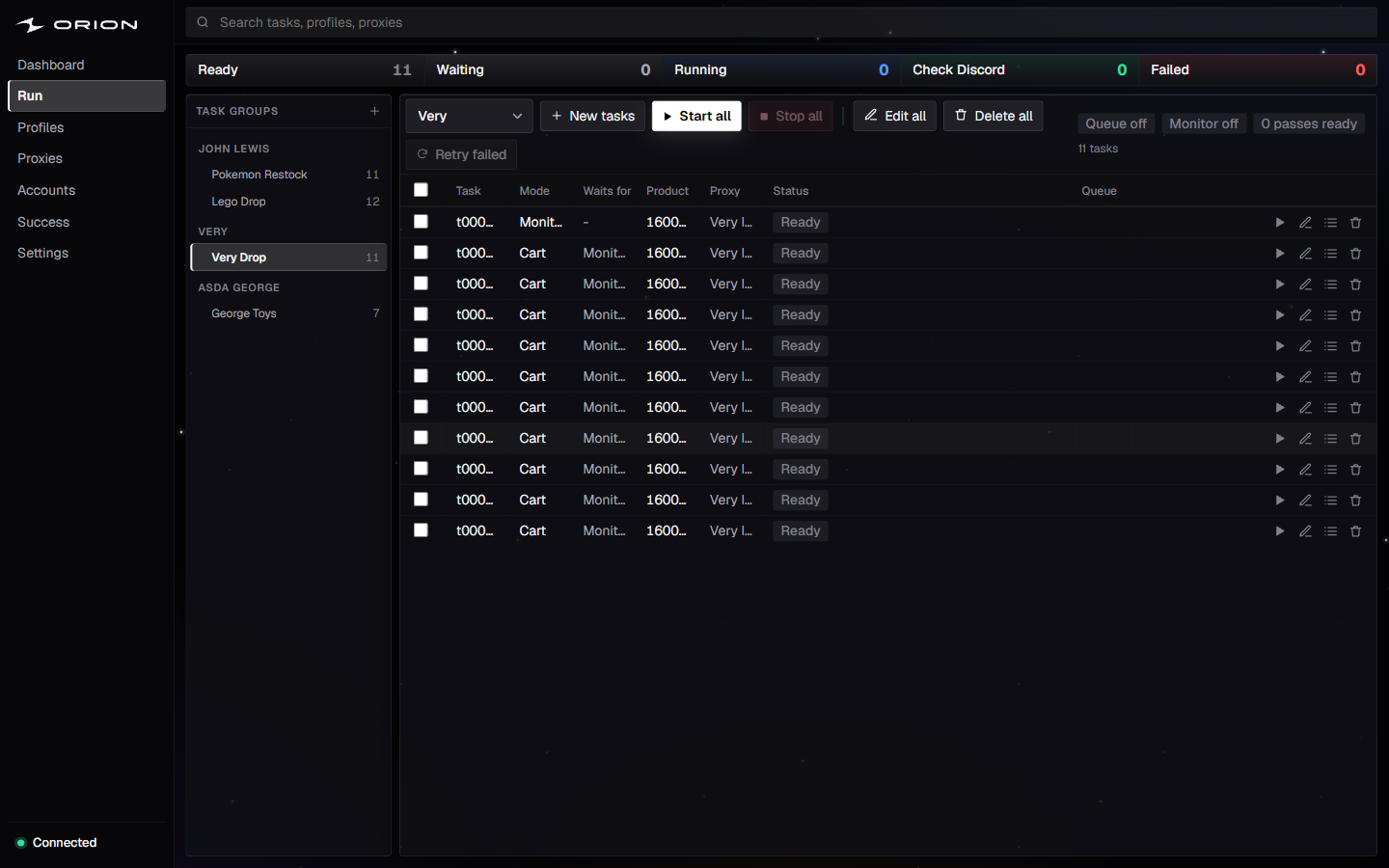 A Very group: one monitor and ten cart tasks waiting for it.
Quick start: recommended setup
A restock, no queue
- Make a group (Run > + > Very).
- New tasks, mode Monitor, paste the product. One monitor per group.
- New tasks, mode Cart, the same product, How many 10 (for example), your Very proxy list, Wait for monitor on.
- Start the group.
A drop with Queue-it
- Make a group for the product.
- New tasks, mode Queue-it, paste the Queue-it link, How many 50 (for example), your Very proxy list.
- New tasks, mode Cart, the same product, Wait for queue on.
- Start the group before the queue opens.
Keep queue and cart tasks in the same group.
Checklist
- A proxy list used only for Very, with "very" in its name.
- Your Orders webhook set in Settings: cart links are sent there.
- A CapSolver key with balance if the queue shows picture challenges.
- The Orion browser extension in your browser, to open cart links.
Product input
| Input | Example shape |
|---|---|
| A product link | https://www.very.co.uk/any-product-name/1612345678.prd |
| A PID (8 to 12 digits) | 1612345678 |
| A SKU or catalogue number (4 to 8 letters and digits) | AB12C |
| Several products in one basket (multicart) | AB12C,XY34Z |
A link with ?vatc= keeps that code as the SKU. Multicart takes up to 10 products separated by commas; every cart task puts all of them in the same basket.
A Very group holds one product (or one multicart set).
Modes
The modes are Cart, Queue-it and Monitor. Cart is selected by default.
Monitor
- One shared stock watcher per group (a second one is refused).
- Checks stock every few seconds with light requests and lets the waiting cart tasks go the moment the product is in stock (low stock counts as in stock).
- If the site answers with a queue, the monitor switches the group onto the queue path and stands by.
- A monitor on its own does not start: a group needs at least one cart task.
Queue-it
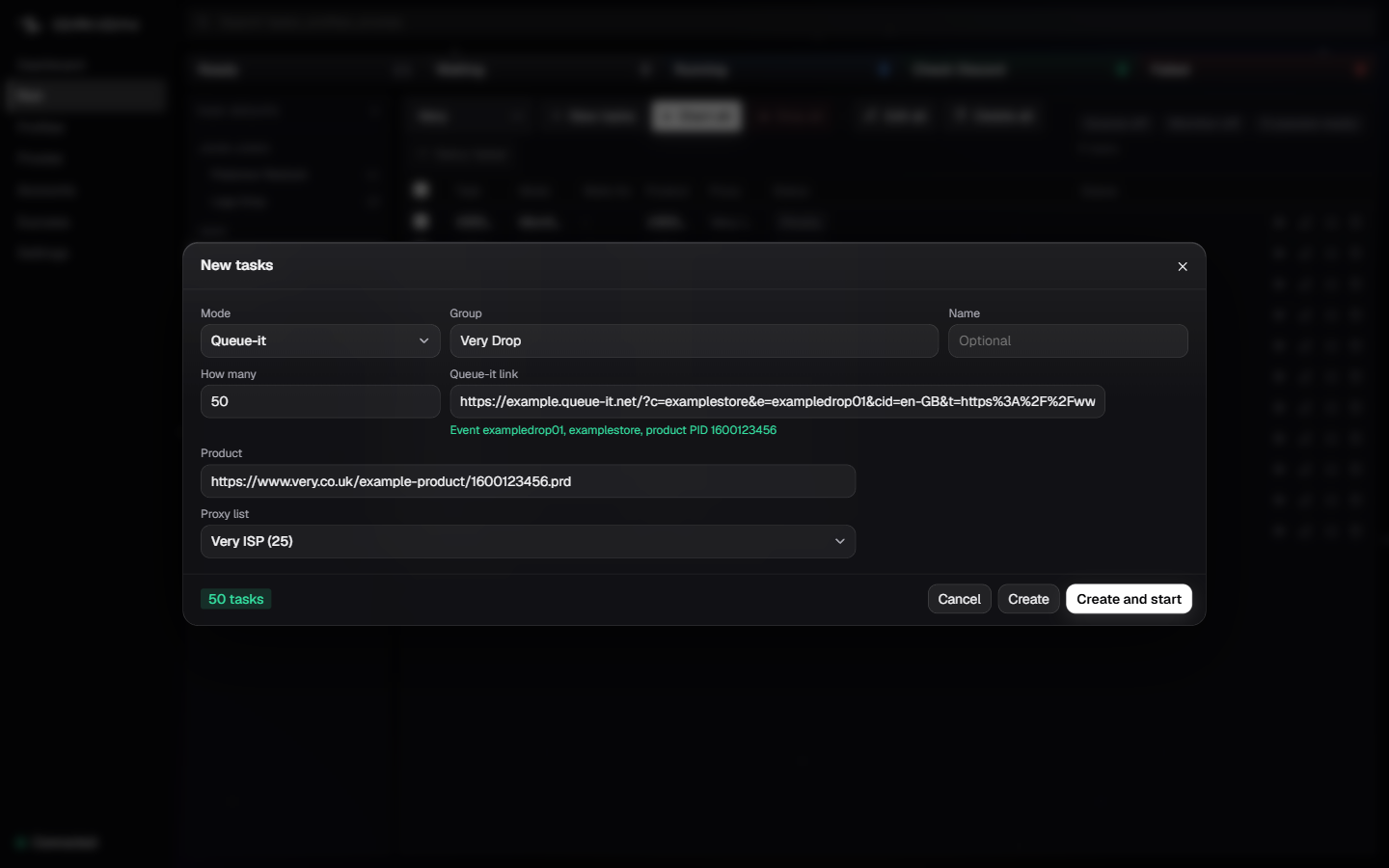 Queue-it tasks read the event from the link.
- Each task joins the waiting room, clears its challenges, waits its turn and puts its queue pass on a shelf for the cart tasks. Then it queues again for another pass.
- A pass that no cart task takes within about 3 minutes is thrown away.
- A task waits up to 90 minutes in the queue.
- Challenges: the simple proof-of-work step is solved on your PC for free; picture challenges are sent to CapSolver.
Queue-it link: paste the waiting room's link. It looks like this:
text
https://example.queue-it.net/?c=examplecustomer&e=exampleevent&t=https%3A%2F%2Fwww.very.co.uk%2F...Only c (the customer) and e (the event) are needed. Orion shows what it read under the box, for example "Event exampleevent, examplecustomer, product PID 1612345678". If the link names a product, the Product box fills in by itself.
Cart
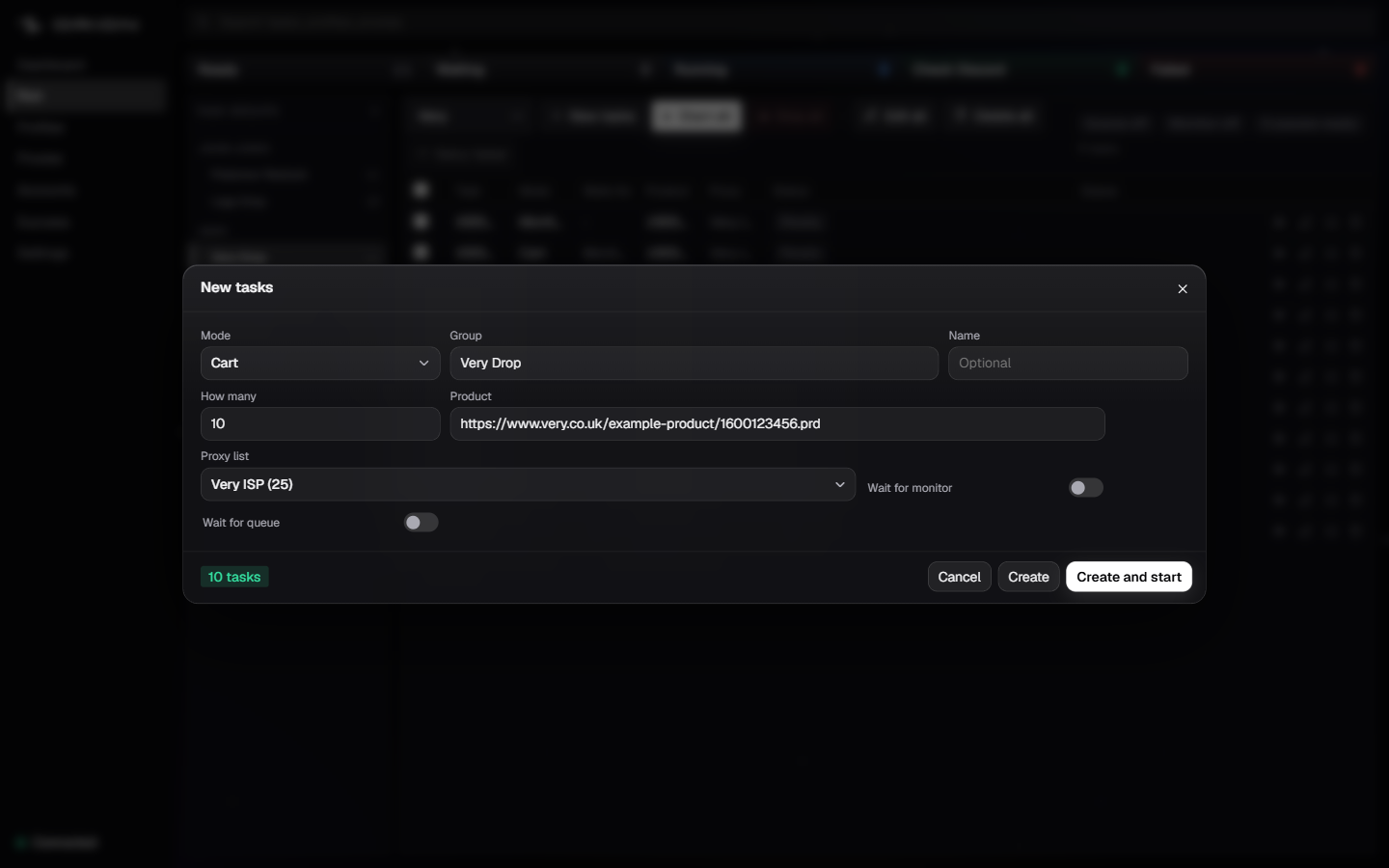 Cart tasks: how many, the product, a proxy list and the two wait switches.
- Waits, if a wait switch is on (see below).
- Opens a fresh session on a proxy from your Very list.
- Uses a queue pass first, if it has one.
- Adds every product to one basket and reads the basket back.
- Posts a Cart ready card to your Orders webhook with the products, total, picture and the cart link. The row shows Check Discord.
Cost: each cart attempt uses a fresh proxy session, so sell-out retries use proxy data each time.
Fields
| Field | Shown for | What to put |
|---|---|---|
| Mode | all | Cart, Queue-it or Monitor. |
| Group | all | The group. |
| Name | all | Optional label. |
| How many | Cart, Queue-it | How many tasks to make, up to 500. A monitor is always one. |
| Queue-it link | Queue-it | The waiting room link (see above). |
| Product | all | Link, PID, SKU or multicart. |
| Proxy list | Cart, Queue-it | Your Very list. Orion picks a list with "very" in its name by default; otherwise choose one. |
| Wait for monitor | Cart | Off by default. |
| Wait for queue | Cart | Off by default. |
Quantity is not in New tasks: it is 1. To buy more of each product, select the cart tasks and use Edit or Edit all to set Quantity. The first cart task's quantity is used for every basket in the group.
The Delay box in Edit is not used by Very.
Wait for monitor and Wait for queue
These are two separate paths, not a chain:
- No queue on the site: cart tasks with Wait for monitor on wait until the monitor sees stock. With it off, they cart straight away.
- Queue up: cart tasks with Wait for queue on wait for a queue pass. With it off, they try without a pass and fail with Queue failed. So for queued drops, always turn Wait for queue on and add Queue-it tasks.
- With no monitor in the group, Wait for monitor is ignored.
Sold out: a cart task goes back to Waiting for restock and tries again on the next restock, when the path changes, or after 60 seconds anyway.
The Very run page
Very groups show three readouts next to the toolbar:
- Queue off / Queue up: whether the site is queueing.
- Monitor off / watching / standing by / in stock / out of stock: what the monitor sees (standing by means the queue is up).
- passes ready: queue passes waiting for cart tasks.
The table adds Waits for (Monitor, Queue, both, or -) and Queue. Stopping one Very task stops the whole group's run.
Opening a cart link
- Install the Orion browser extension in Chrome or Edge (ask in the Orion Discord if you do not have it).
- Open the Cart ready post in Discord and click the link, or use Copy link in Success.
- The extension loads the basket into very.co.uk. Check out and pay as normal.
Open links quickly: the session in a link lasts about 90 minutes, and Very may clear baskets sooner. Links stay in Success for 7 days.
Statuses you will see
| Status | Meaning |
|---|---|
| Ready | Not started. |
| Watching / Standing by | The monitor at work (standing by: the queue is up). |
| Waiting for monitor | Waiting for stock. |
| Waiting for queue | Waiting for a queue pass. |
| Waiting for restock | Sold out; will try again. |
| Starting, Warming up, Running, In the basket | Working. |
| Check Discord | The cart link has been posted. |
| Failed | See below. |
Common errors and fixes
| Error | What it means | What to do |
|---|---|---|
| Network error | Three proxies in a row failed to connect. | Your proxies are dead, out of data or burned: refresh the list. |
| Blocked by the site | Very refused the add to basket from that address. That proxy is retired for the run. | Use fresh, clean residential proxies. |
| Queue failed | The drop is queued and the task had no pass. | Turn on Wait for queue and add Queue-it tasks to the group. |
| Basket came back empty | The basket read back empty. | Retry failed. |
| Pick a proxy list for those Very tasks | No list, or an empty one. | Edit the tasks and choose your Very list. |
| Those tasks have no product | The tasks have no product. | Edit them and add one. |
| Task limit reached | Monitor, queue and cart tasks all count toward your licence's limit. | Fewer tasks, or a bigger plan. |