
Profiles
A profile is one person's details: name, email, phone, delivery address and card. Every checkout task uses one profile.
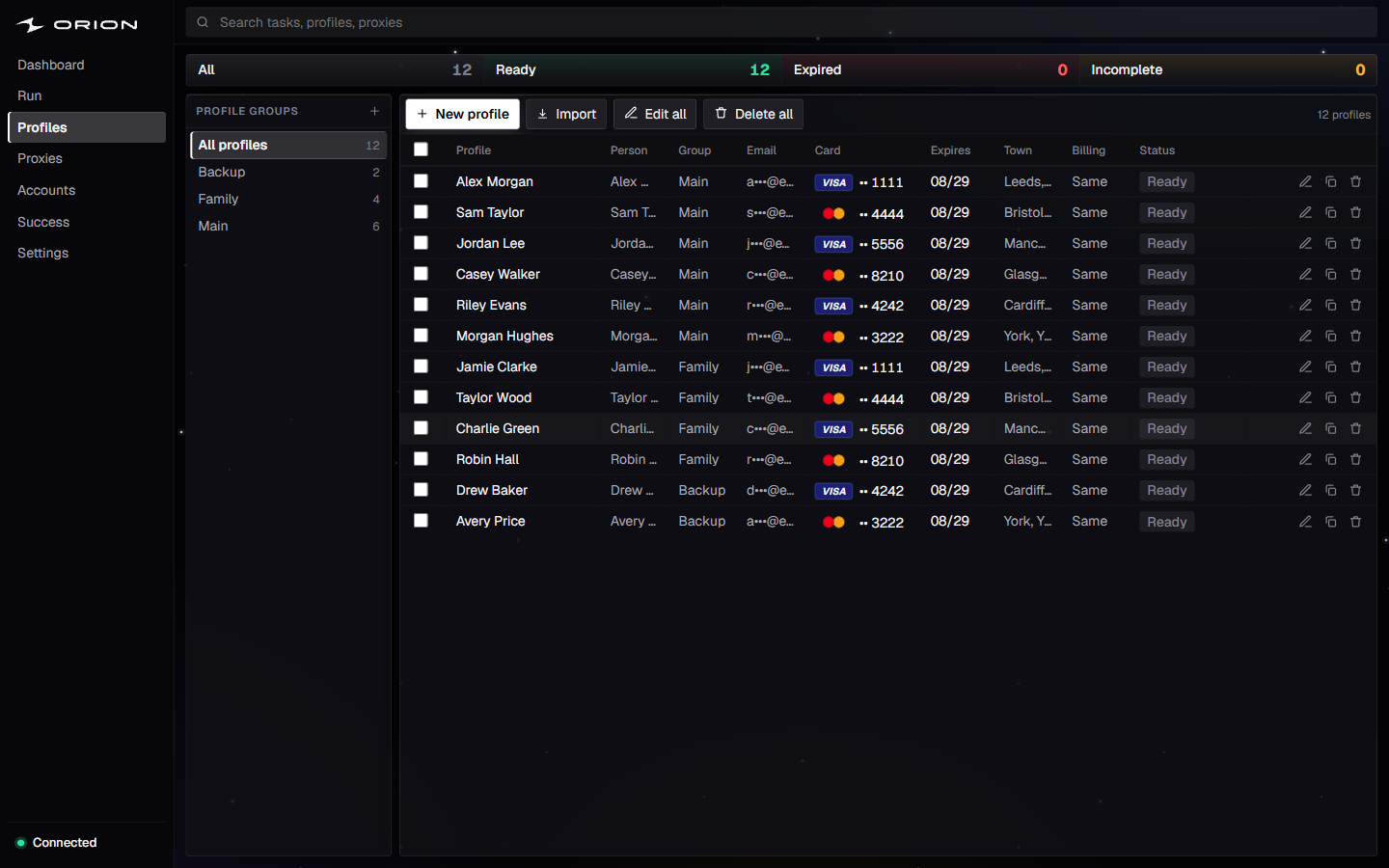 Profiles with three groups.
The layout
- Figures along the top: All, Ready, Expired and Incomplete. Click one to show only those profiles.
- PROFILE GROUPS on the left: All profiles, then your groups with how many profiles each holds. Hover a group to rename or delete it. New group makes an empty one.
- The toolbar: New profile, Import, Edit all, Delete all.
- The table: Profile, Person, Group, Email (shortened), Card (type and last four digits), Expires, Town, Billing and Status. Each row has Edit, Duplicate and Delete.
Card numbers are never shown in full anywhere in Orion.
Status
| Status | Meaning |
|---|---|
| Ready | Complete. Tasks can use it. |
| Expired | The card's expiry date has passed. It still gets tasks, so update the card. |
| Incomplete | Something needed is missing (for example the CVV). New tasks skip it. |
Adding a profile
Click New profile.
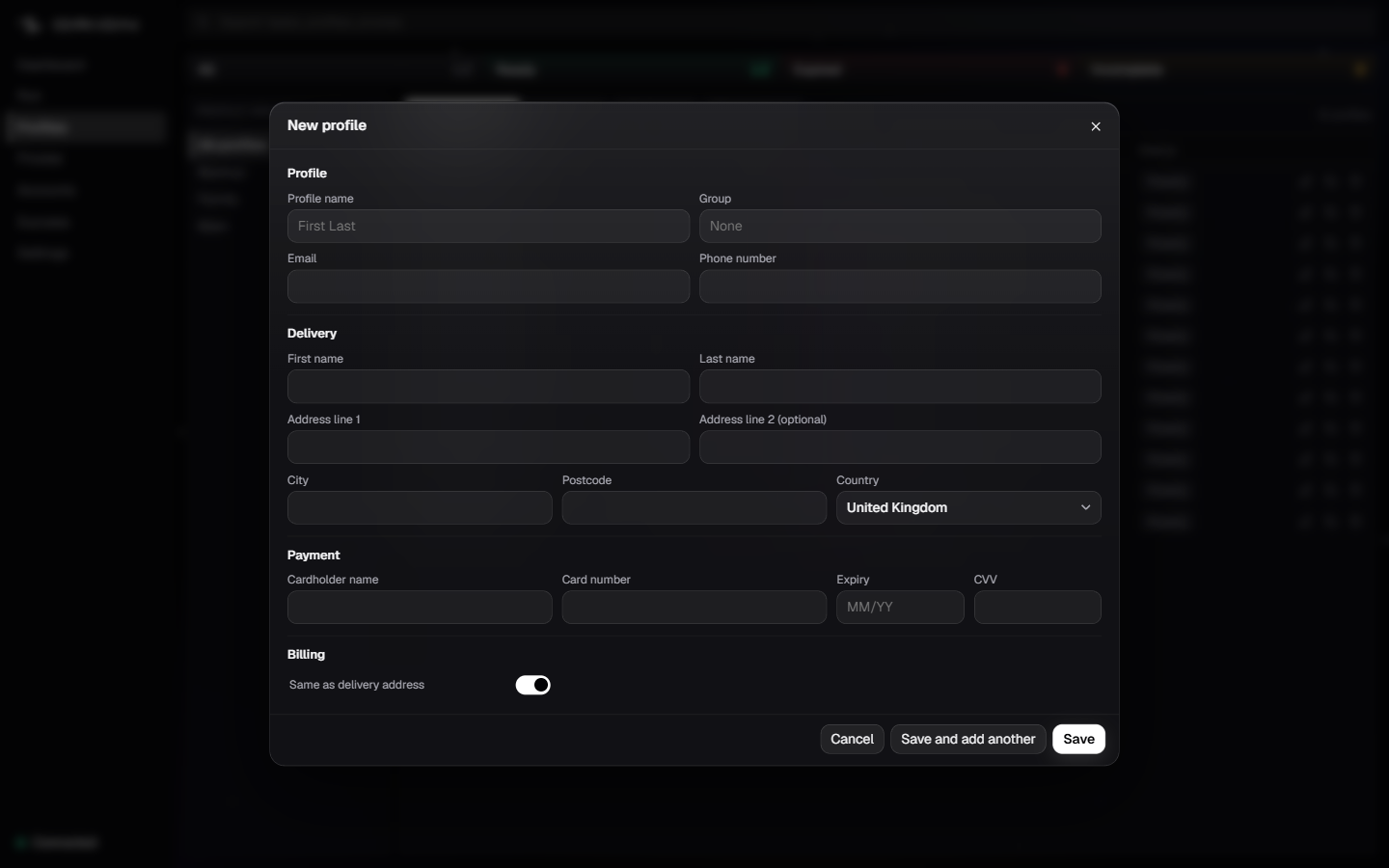 The profile form.
Profile
- Profile name: how it shows in Orion. Left empty, it becomes "First Last".
- Group: pick a group or type a new name.
- Email: the email the order goes to. For ASDA George it must not already have an ASDA account.
- Phone number: needed. ASDA George will not run a profile without one.
Delivery
- First name, Last name
- Address line 1, Address line 2 (optional)
- City, Postcode, Country
Payment
- Cardholder name
- Card number: checked as you type.
- Expiry: month and year, for example
08/29. It cannot be in the past. - CVV: 3 or 4 digits.
Billing
- Same as delivery address: on by default. Turn it off to type a different billing address.
Save saves and closes. Save and add another saves and clears the form for the next one.
Importing profiles
Click Import (or press I).
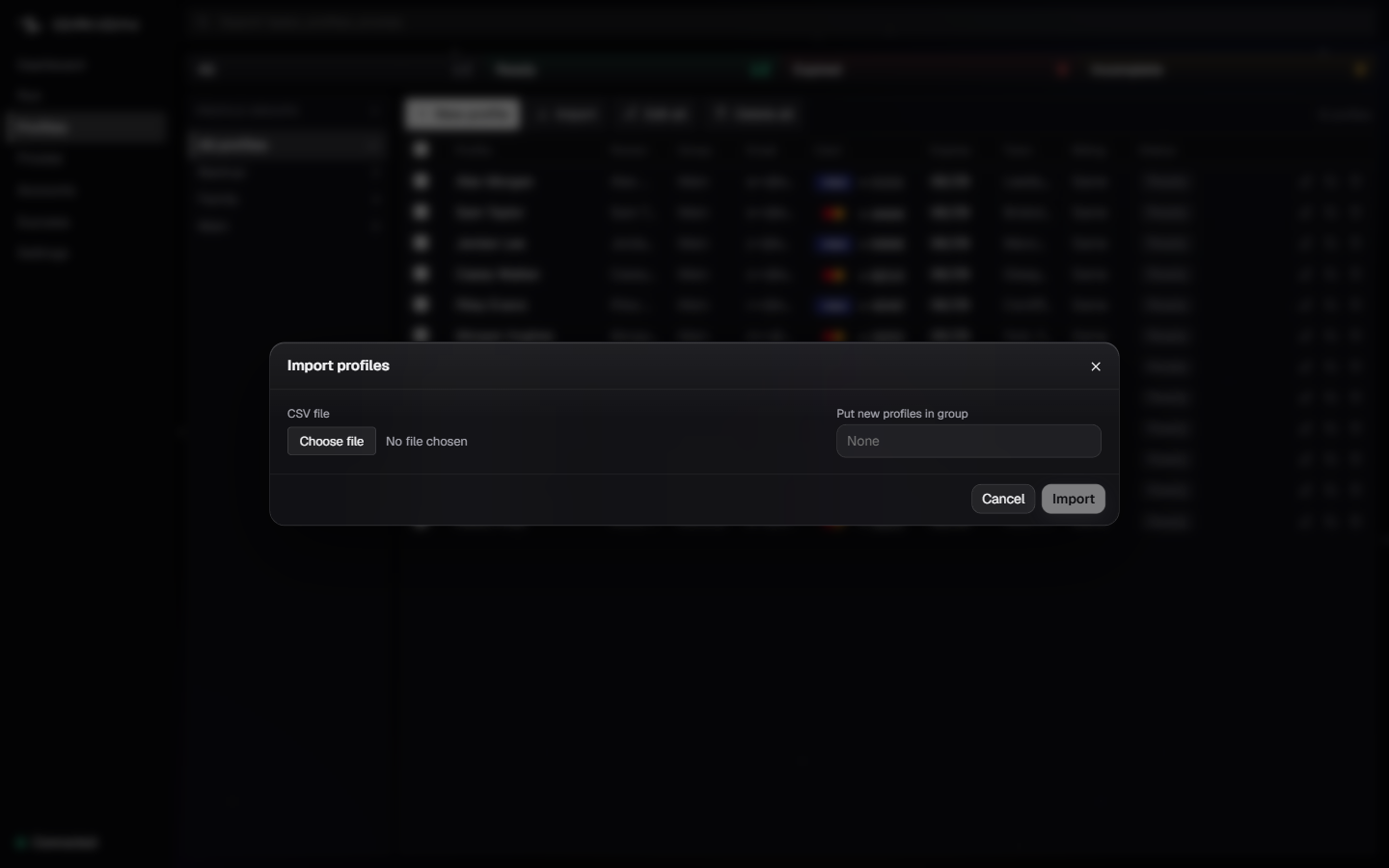 Importing from a CSV file.
- Choose or drop your CSV file.
- Pick the group for the new profiles under Put new profiles in group (or make a new one).
- Click Import.
Orion reads the format from the file's header row. It takes:
- Stellar AIO profile exports,
- Cyber AIO exports,
- Orion's own export.
When it finishes it says how many were added, updated and skipped, and why any were skipped. Rows with a billing address that differs from the delivery address keep it.
Editing many profiles at once
Click Edit all (or tick some profiles first).
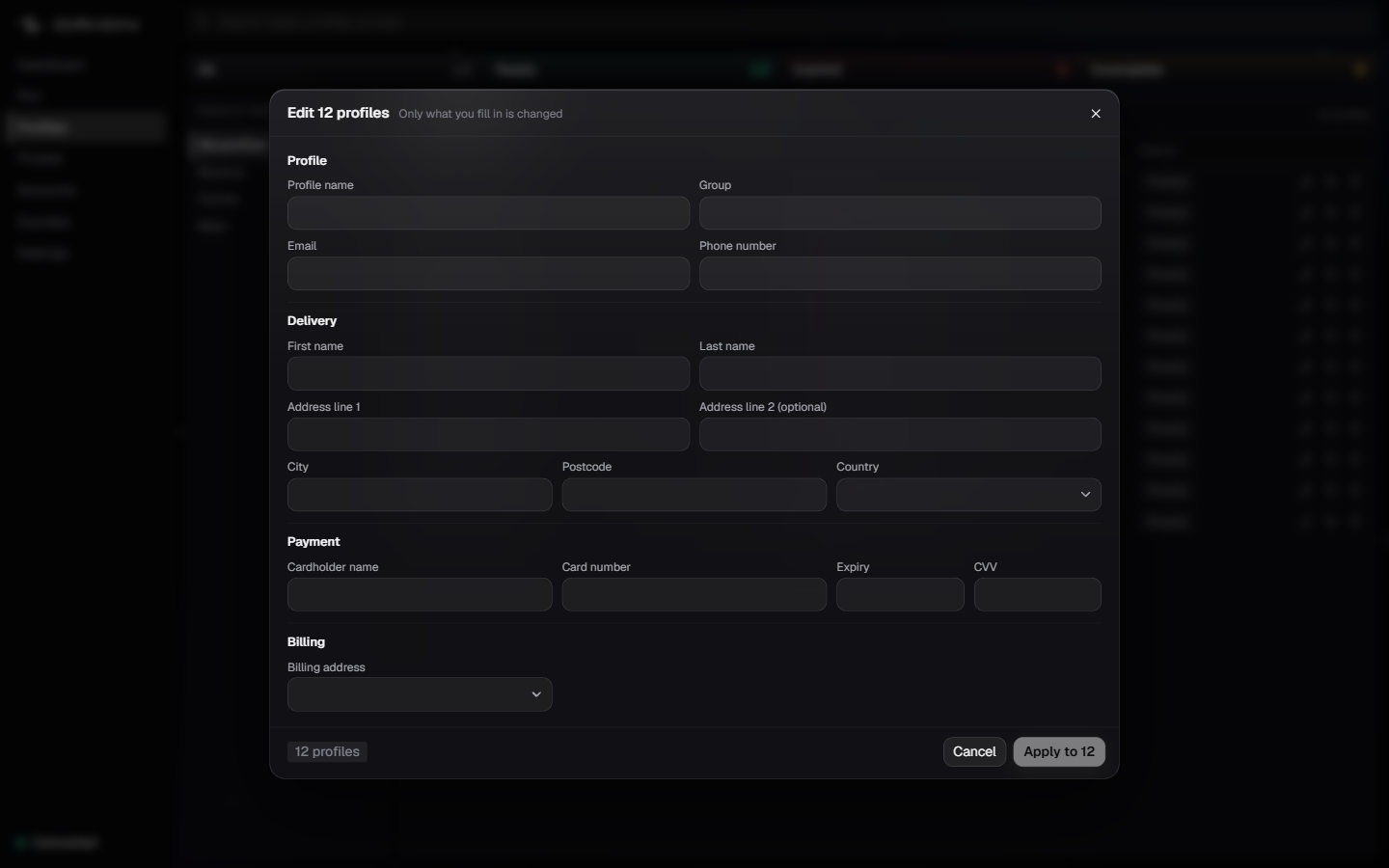 Edit all: only filled-in fields change.
The same form opens empty. Only the fields you fill in are changed; everything else is left alone. Use the profile picker at the top to choose which profiles change. The button says how many will change, for example Apply to 12.
Good for changing a card across a group, moving profiles into a group, or fixing a shared address line.
Deleting
Delete on a row deletes one profile. Delete all deletes the ticked profiles, or the open group. Tasks that used a deleted profile are deleted with it. A profile used by a running task is kept until the task stops.
Where profiles are kept
Profiles are stored on your PC only, encrypted with your Windows account, in %APPDATA%\Orion. They are never sent to Orion's servers.