
Run (tasks)
Run is where you make, start and watch your tasks. Every task lives in a task group, and every group belongs to one site.
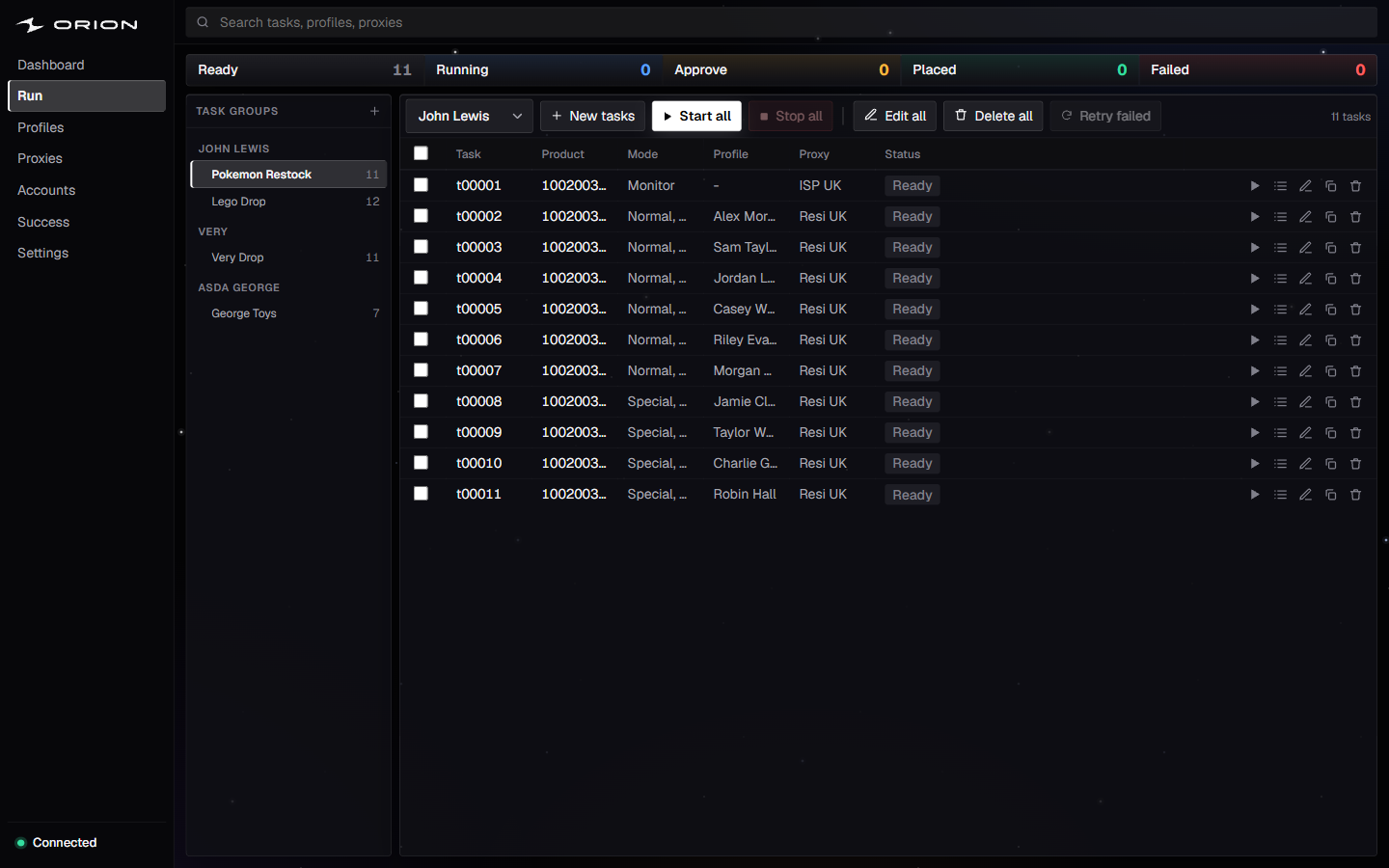 Run with a John Lewis group open.
The layout
- Status tiles along the top count the tasks in the open group: Ready, Running, Approve, Placed and Failed. A Very group shows Ready, Waiting, Running, Check Discord and Failed. Click a tile to show only those tasks.
- TASK GROUPS on the left lists your groups under each site, with how many tasks each holds.
- The toolbar above the table holds the actions for the open group.
- The table lists the tasks in the open group.
Task groups
Click + next to TASK GROUPS to make a group.
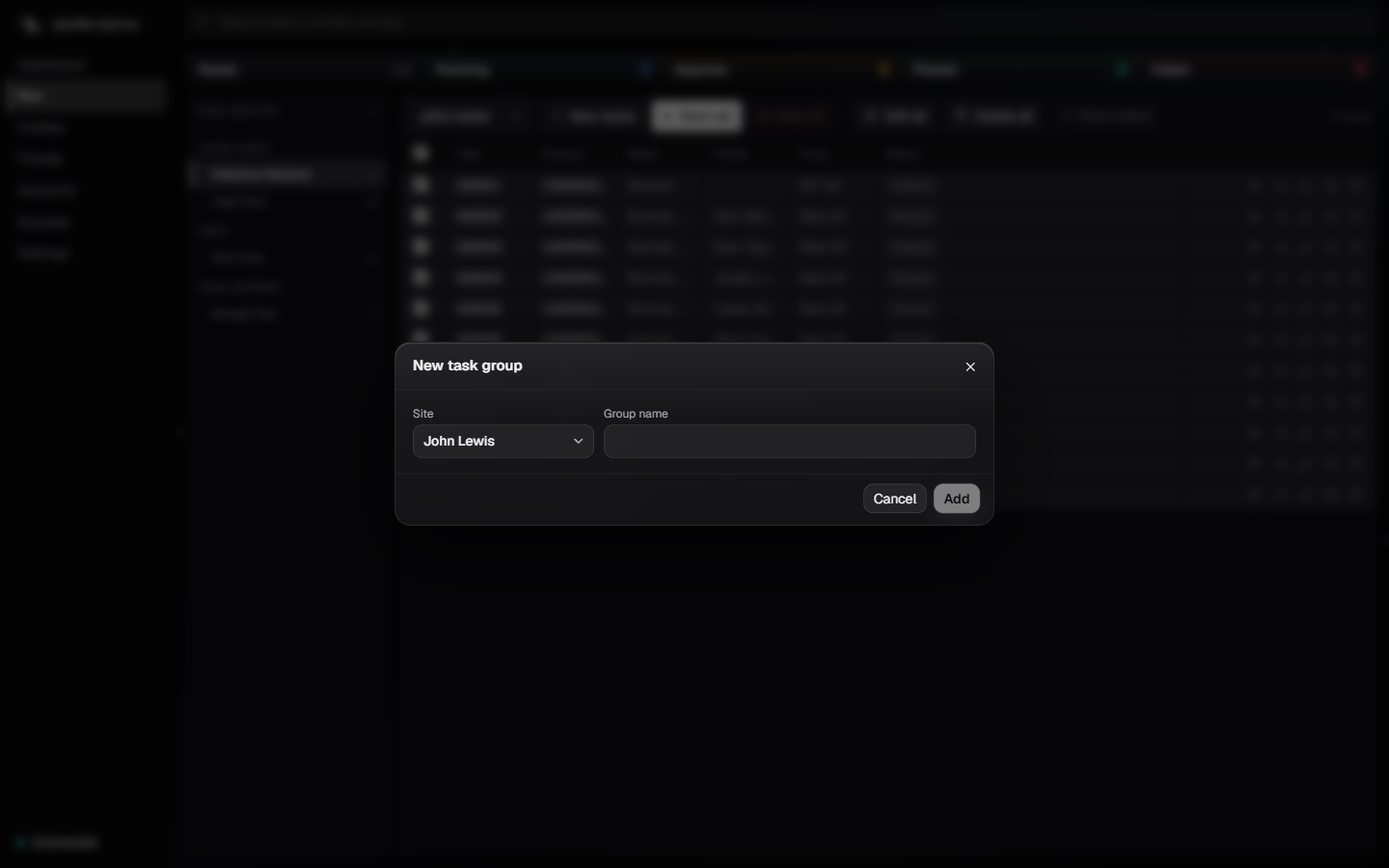 Making a group.
- Site: John Lewis, Very or ASDA George.
- Group name: anything you like, such as the product or the drop.
Click Add. Hover a group in the list to rename or delete it. Deleting a group deletes its tasks.
One product per group
A group can hold tasks for several John Lewis or ASDA products, but keeping one product per group makes it easy to start, stop and read. A Very group always holds one product.
Toolbar
| Button | What it does |
|---|---|
| Site | Switches between John Lewis, Very and ASDA George groups. |
| Start all / Stop all / Delete all | Acts on the whole group, or only the ticked tasks. Start places real orders. |
| Edit all | See Bulk edit. |
| Retry failed | Starts the failed tasks again. |
Very groups also show three readouts on the right: Queue off / Queue up, Monitor off / watching / in stock / out of stock, and passes ready. See Very.
The table
| Column | What it shows |
|---|---|
| Task | The task's short id (or the name you gave it). |
| Product | The product the task is for. |
| Mode | The mode, and for checkout tasks how it pays (for example "Normal, Card"). |
| Profile | The profile it uses. Monitors have none. |
| Proxy | The proxy list it uses (or Localhost). |
| Status | What it is doing now. See Statuses and errors. |
The buttons at the end of each row are Start, Edit, Logs (what that task has done, step by step) and Delete.
Picking tasks
- Tick a row to select it. Hold Shift and tick another row to select everything between them.
- The box in the header selects every task shown.
- With tasks ticked, Start all, Stop all, Edit all and Delete all act on the ticked tasks only.
- Right-click a row for more actions.
- The search bar at the top finds tasks, profiles and proxies.
New tasks
Click New tasks with a group open.
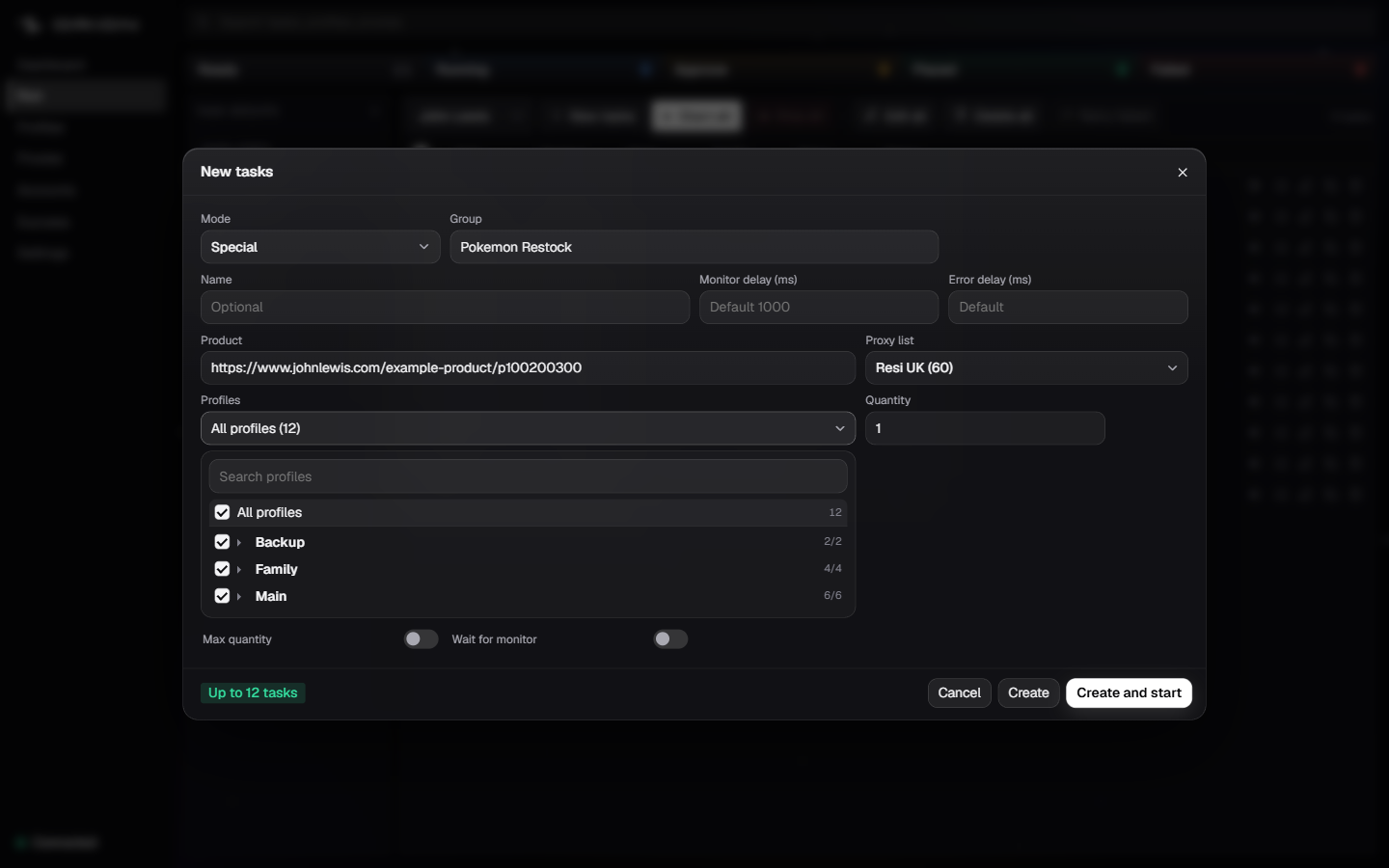 New tasks for John Lewis, with the profile picker open.
The fields depend on the site and mode. The common ones:
| Field | What to put |
|---|---|
| Mode | What the tasks do. See your site's guide. |
| Group | The group the tasks go in. Pick one, or type a new name to make a group. |
| Name | Optional. A label shown in the Task column (up to 40 characters). |
| Monitor delay (ms) | How often each stock check runs, in milliseconds. Leave empty for the default. 250 to 60000. |
| Error delay (ms) | How long a task waits after an error before trying again. Leave empty for the default. 250 to 60000. |
| Product | A product link, SKU or PID. See your site's guide for the formats. |
| Proxy list | Where the tasks take their proxies from. |
| Profiles | Which profiles get a task. Tick All profiles, whole groups, or open a group (the arrow) and tick single profiles. There is a search box at the top. |
| Quantity | How many of the product each task buys: 1 to 99. |
| Max quantity | Buy as many as the site allows (see your site's guide). |
| Wait for monitor | On: tasks get ready and wait until a monitor sees stock. Off: tasks go straight away. |
The pill at the bottom left shows how many tasks will be made: products x profiles, for example "Up to 12 tasks" for one product and 12 profiles.
If nothing is made, the window says why, for example "N incomplete" (profiles missing details) or "N without a free proxy".
Editing a task
Click Edit on a row.
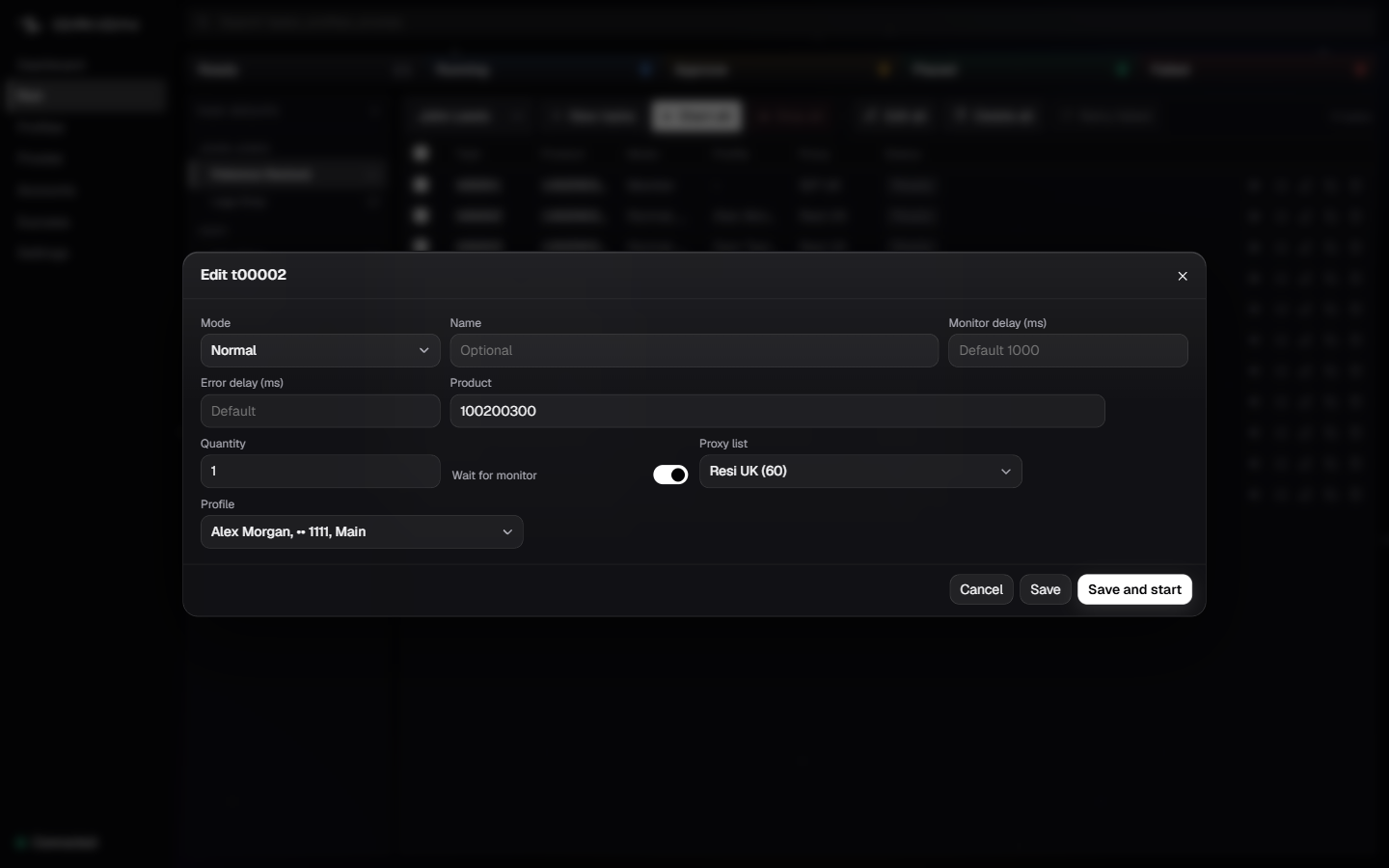 Editing one John Lewis task.
Change what you need. Fields you leave empty keep their current value. You can change the mode, product, quantity, proxy list and profile. Save and start saves and starts the task.
A running task cannot be edited (Very lets you change the product only). Stop it first.
Bulk edit
Click Edit all (or press E with tasks ticked).
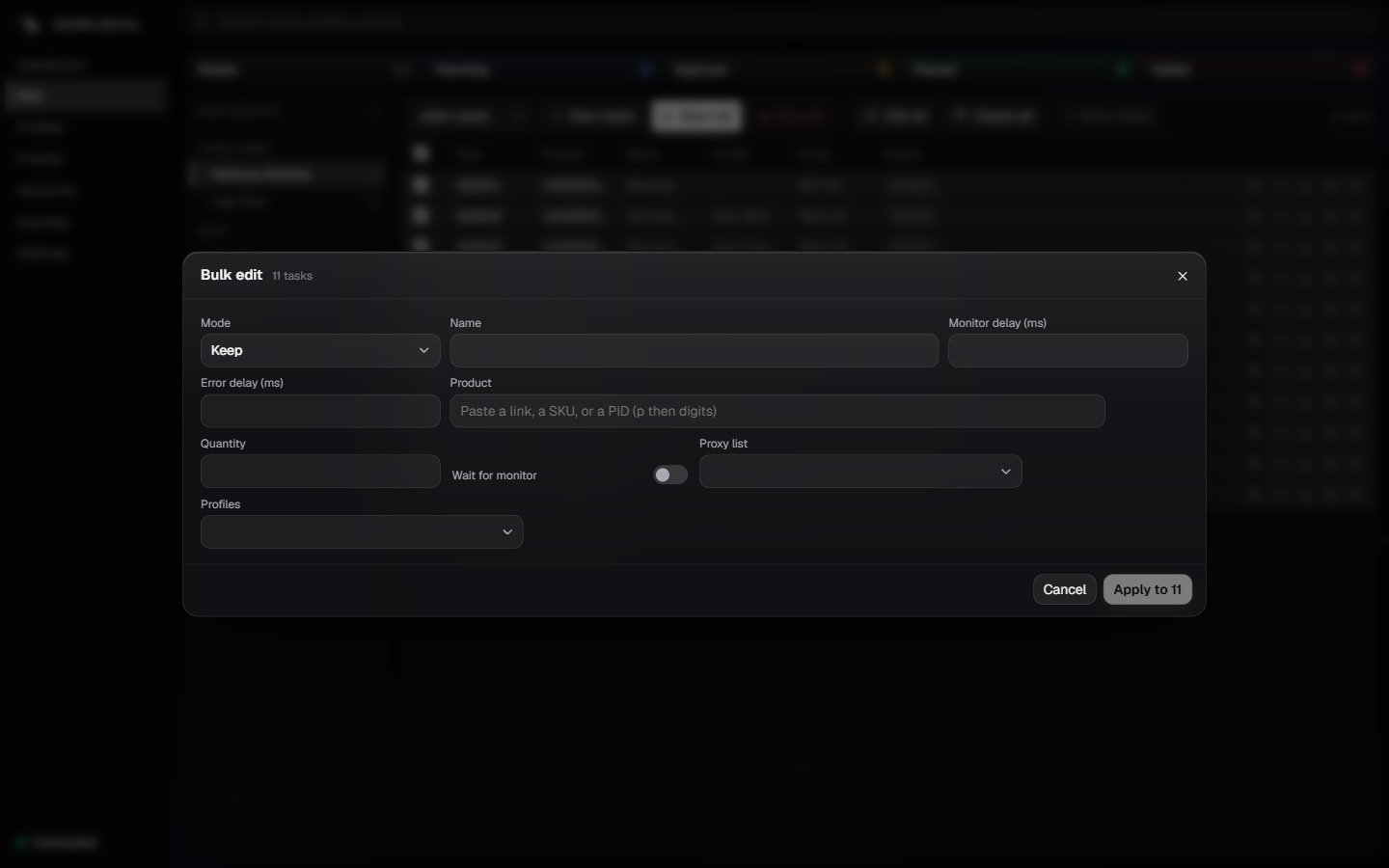 Changing 11 tasks at once.
Only the fields you fill in change; everything left empty or on Keep stays as it is. The button says how many tasks change, for example Apply to 11. Picking a profile group hands its profiles out to the tasks one each, in turn.
Logs
Click Logs on a row to see that task's steps as they happen. Copy logs copies them, ready to paste into a support ticket.
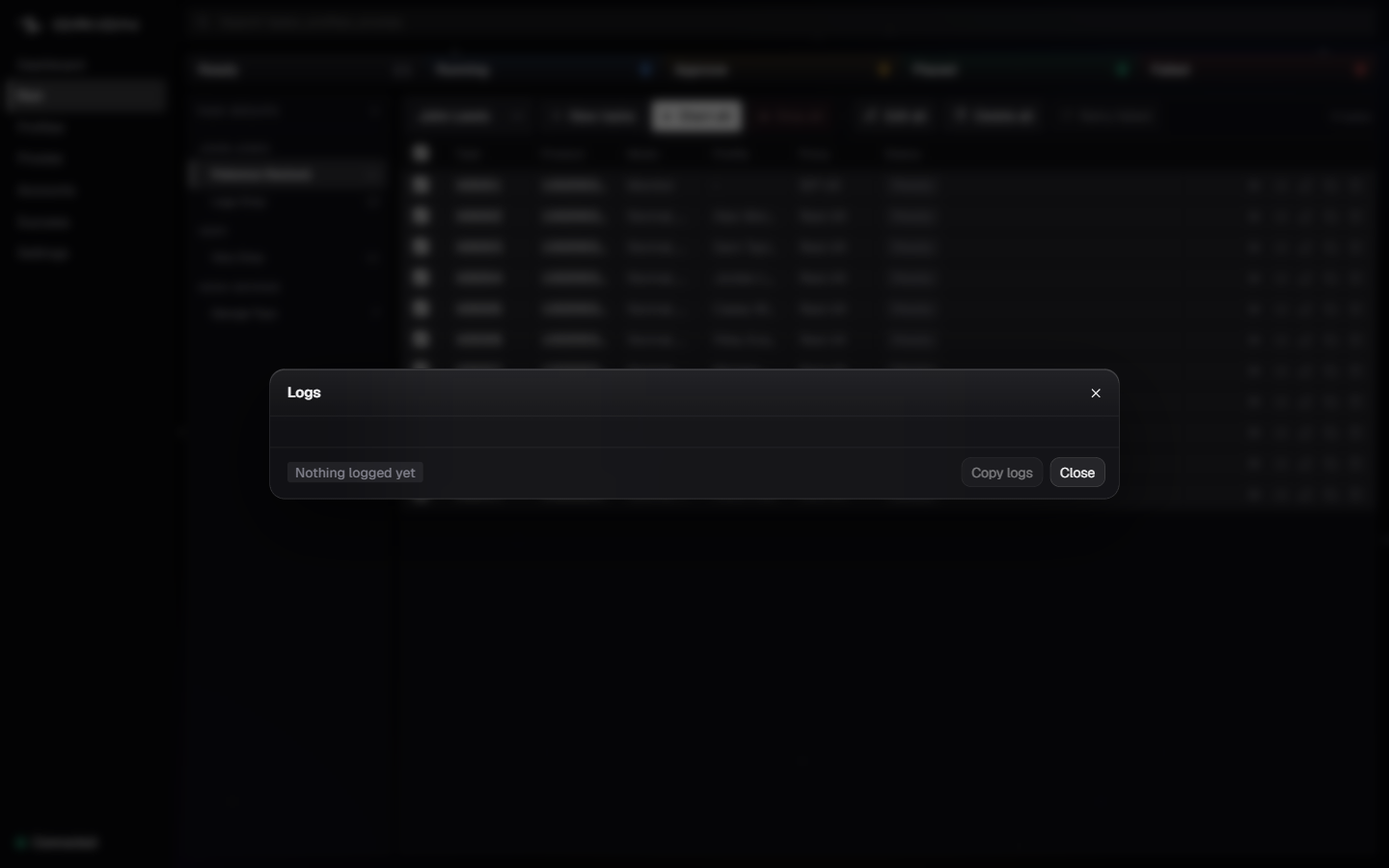 The Logs window (empty until the task runs).
Proxy passwords and card numbers are never shown in logs.
Keyboard shortcuts
| Keys | Action |
|---|---|
| Ctrl K or / | Search |
| 1 to 7 | Go to a page |
| N | New task, profile or list |
| I | Import profiles |
| Ctrl Enter | Start selected, or all |
| Ctrl . | Stop selected, or all |
| Ctrl A | Select all shown |
| E | Edit selected |
| Del | Delete selected |
| Esc | Close a window or menu |
Task limit
Your licence may have a task limit. Starting more tasks than it allows starts what fits and shows "Task limit reached".